Relate documents to one another so that users realize when one document is retrieved in the Document Grid, one or more others should also be considered. For example, relate exhibits to an agreement, attached files to email messages, or comparison documents to the original.
From the Navigation Pane, select the
Client Workspace/Tab/Folder.From the Document Grid, select the
document that is the KEY document (the one you want to relate the other documents to).Tip: This is called the parent document.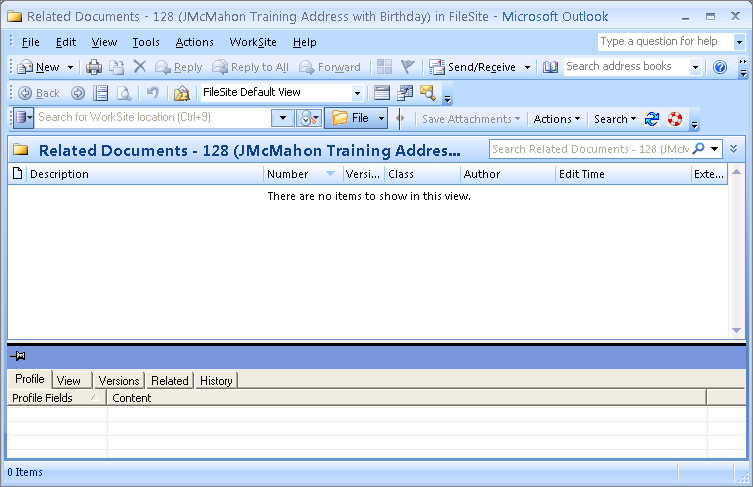
RIGHT-CLICK the document and select
Document Info -Related Documents… from the shortcut menu
The Related Documents window is displayed.Tip:DO NOT MINIMIZE THE RELATED DOCUMENTS WINDOW. It may be necessary to restore down the Outlook and Related Documents windows, so that both windows are visible at the same time. It is much easier to relate documents with two monitors.From the Navigation Pane, go to the expand the
<Client-Matter> workspace and find the TAB and the folder in which the document(s) are that you want to relate to your Parent Document.
From the Document Grid, select the document(s) and
drag and drop it to the Related Documents dialog box in the area below
Description. The related document is listed in the window.
Click the
Close button of the Related Documents dialog box. A
Related Docs icon appears in the Document Grid over the application icon of the Parent document. Only the parent document will display the Related Docs icon.
From the Navigation Pane, select the
Document Worklist node.
From the Document Grid, select the
Parent Document and click the
Related tab in the Document Results Frame. The related documents are displayed.
Tip: To open the related document, right-click the original document and select Document Info-Related Documents… from the shortcut menu to open the Related Documents dialog box, then double-click the related document to open it.